# Create API keys

## What are API Keys?

API keys are **administrative keys** that allow you to manage your Chain.Love account programmatically. They provide access to administrative functions such as:

* **Creating query keys** - Generate new query keys for blockchain access
* **Viewing statistics** - Access usage analytics and performance metrics

## Step 1: Sign In

We use Wallets, GitHub and Google Auth for authentication to ensure security of our users. This approach offers several benefits:

* **No need to store and manage usernames/passwords**: we are not storing any password-related information on Chain.Love, instead we use your existing accounts for authentication.
* **Anonymity (Wallets)**: For connections via Crypto Wallets we don't store any personal information automatically, but you can explicitly opt-in to share your contact details (e.g., for receiving important updates or support).

### Sign In

To sign in with your account, follow these steps:

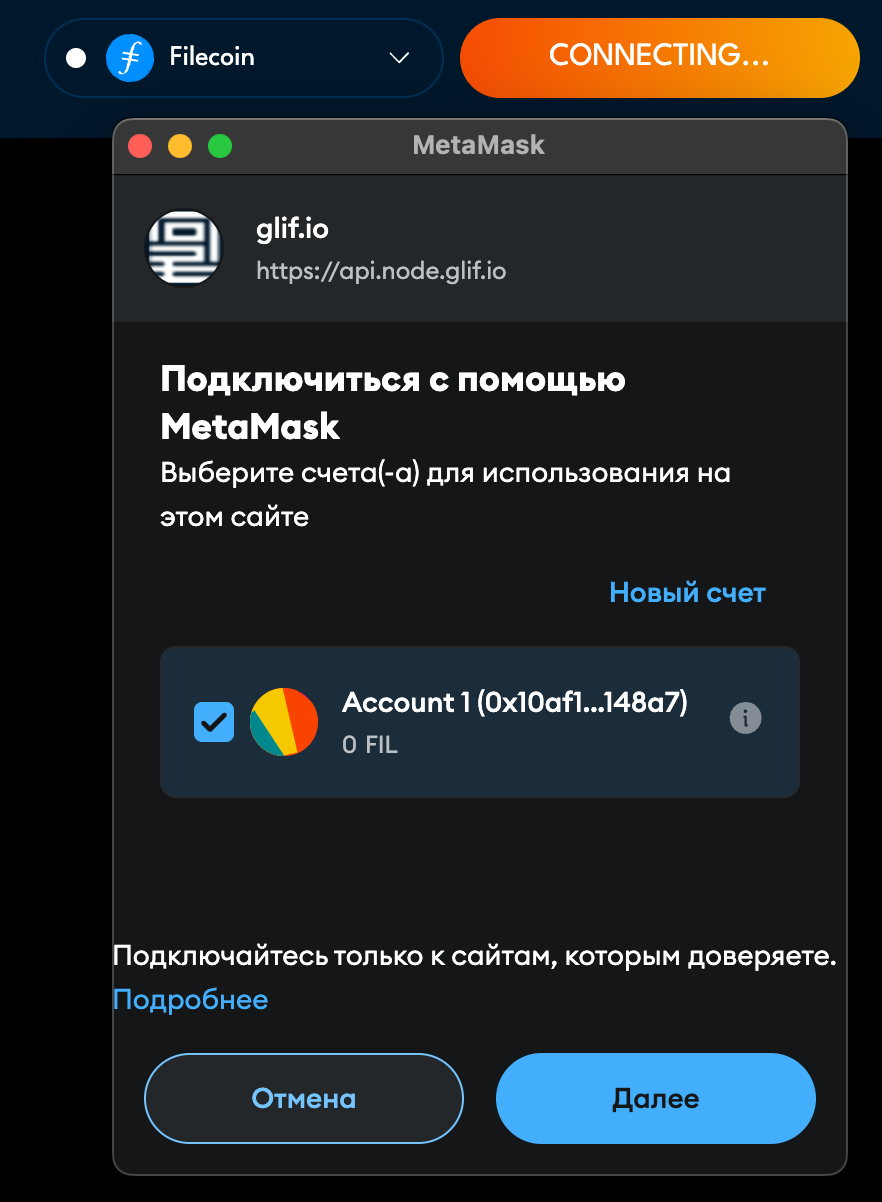
1. Visit the [Chain.Love website.](https://chain.love/) Select the network you would like to work with. Please note that your API keys is different on each of the Chain.Love installations.
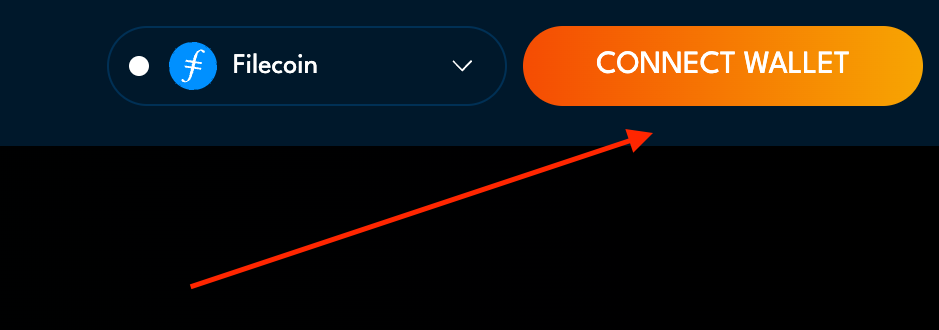
2. Select **Connect Account**.
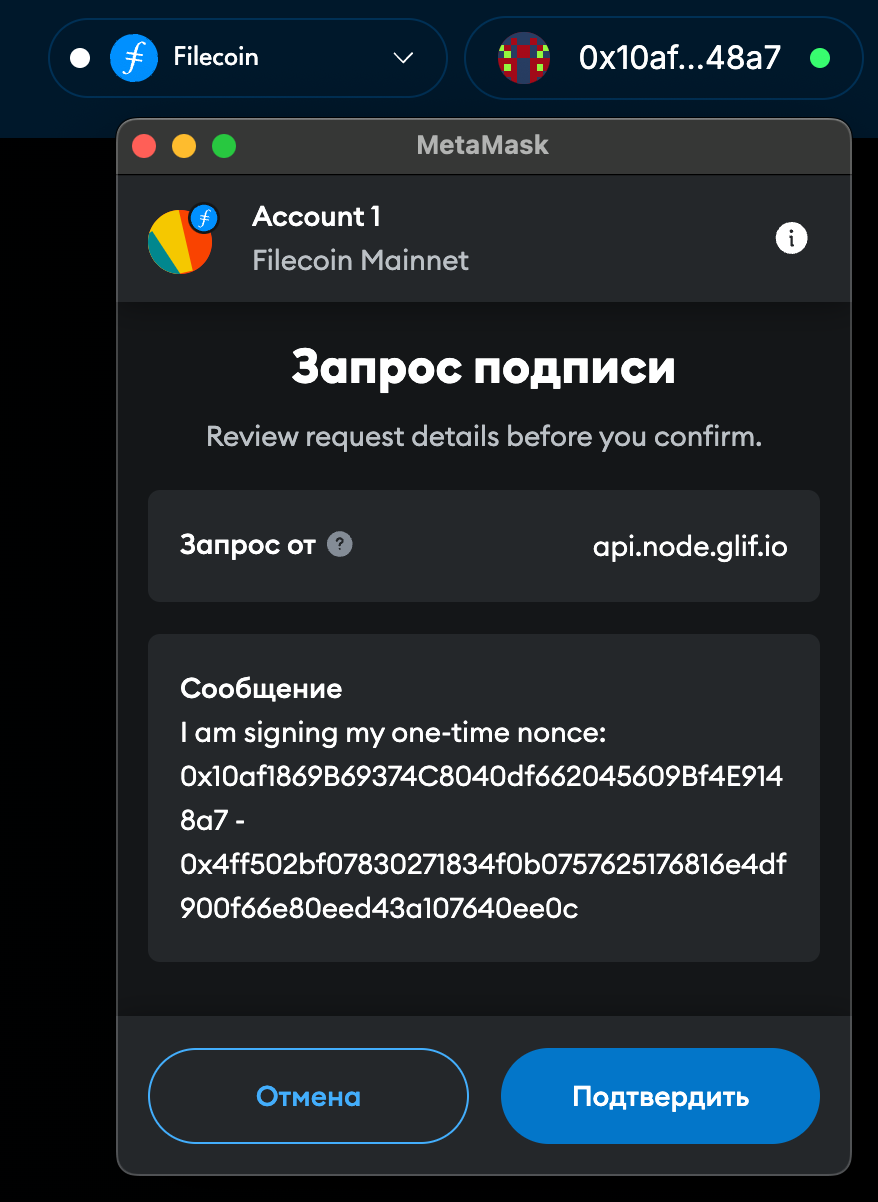
3. Select provider to connect.
4. For the Metamask wallet - sign the offchain message to confirm your ownership of the account. For GitHub and Google auth - login in your respective accounts and confirm the login.

On the screenshot below please check the wallet connection process:

<div align="center" data-full-width="false"><figure><img src="https://1171493456-files.gitbook.io/~/files/v0/b/gitbook-x-prod.appspot.com/o/spaces%2FPWuDHqT5CRbrc5eu4gbw%2Fuploads%2Fgit-blob-d945a287ab63b3a0818e643c945b1189b964766a%2Fconnect_wallet_button.png?alt=media" alt="" width="375"><figcaption><p>Connect Account Button</p></figcaption></figure> <figure><img src="https://1171493456-files.gitbook.io/~/files/v0/b/gitbook-x-prod.appspot.com/o/spaces%2FPWuDHqT5CRbrc5eu4gbw%2Fuploads%2Fgit-blob-30d9ce7894994467c98a4117f0dc8036a8ff4428%2Fconnection_window.png?alt=media" alt="" width="188"><figcaption><p>Connection window</p></figcaption></figure> <figure><img src="https://1171493456-files.gitbook.io/~/files/v0/b/gitbook-x-prod.appspot.com/o/spaces%2FPWuDHqT5CRbrc5eu4gbw%2Fuploads%2Fgit-blob-b7940c1c36e0f154e9e49e7141868de88b209c04%2Fsignature_window.png?alt=media" alt="" width="188"><figcaption><p>Signature window</p></figcaption></figure></div>

***

## Step 2: Create an API Key

To create an API key, follow these steps:

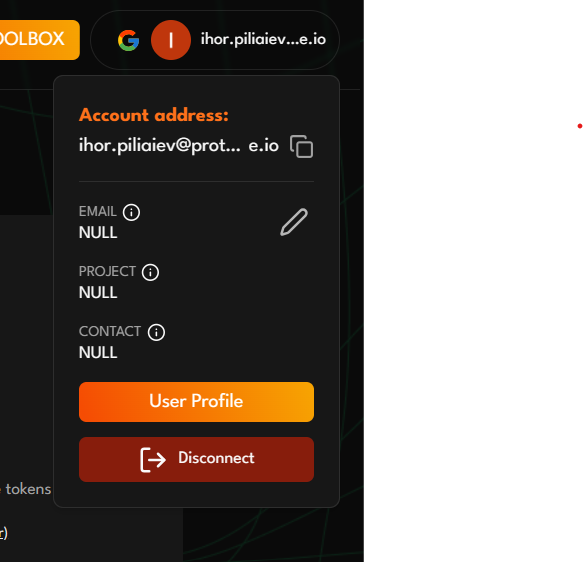
1. **Navigate to API Tokens**: Click on your user profile in the top right corner, then select **User Profile**
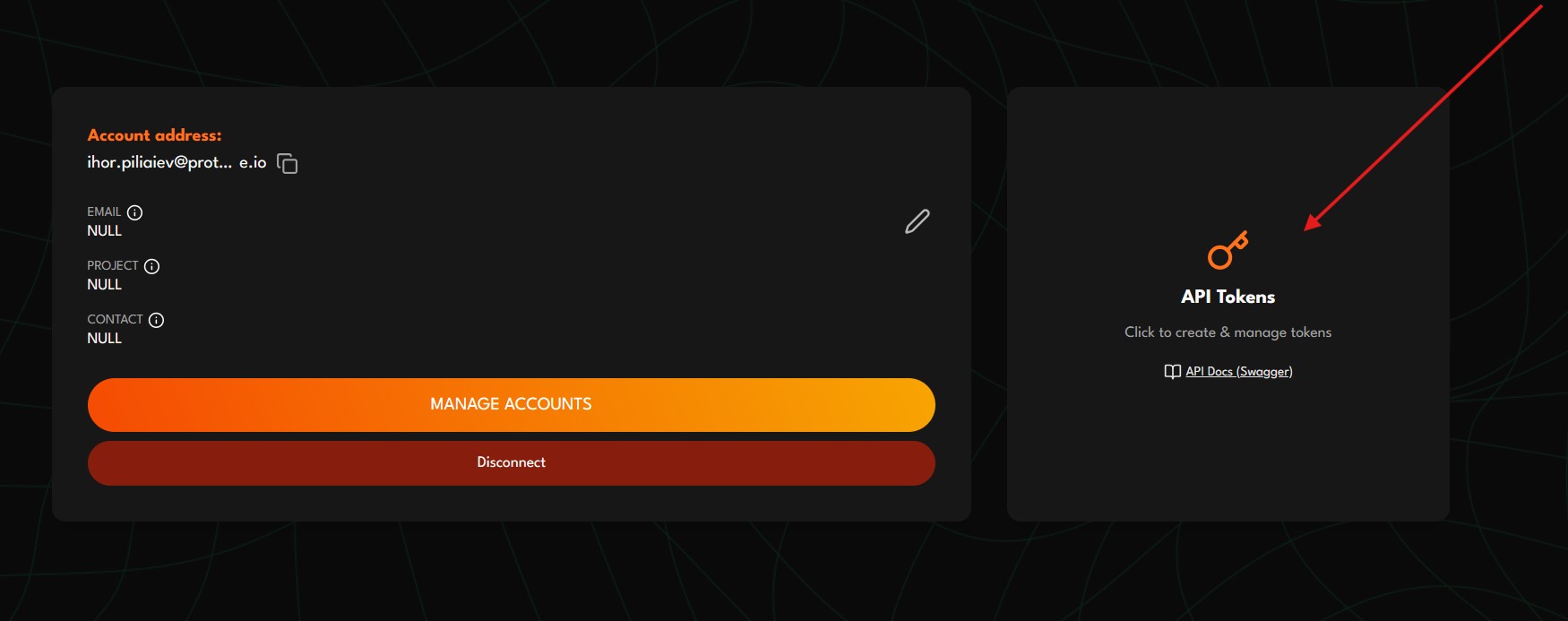
2. **Access API Tokens**: In the user profile section, click on the **API Tokens** card
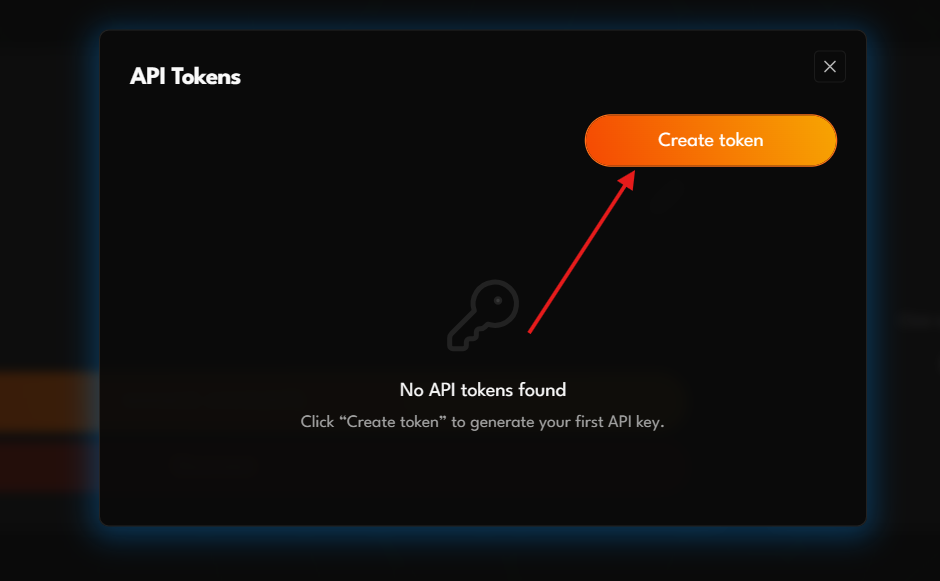
3. **Create New Token**: Click the **Create token** button in the API Tokens modal
4. **Fill in the token configuration form**:
   * **Token name** (required) - Choose a descriptive name for your API key
   * **Permissions** - Select the permissions your API key should have
   * **Allowed IPs** (optional) - Restrict usage to specific IP addresses
   * **Allowed Domains** (optional) - Restrict usage to specific domains
   * **Expiration** (optional) - Set an expiration date for the token
5. Click **Save** to generate your API key

Once created, you'll see your API key displayed in the tokens table. You can copy it, show/hide it, and manage its settings.

### Navigation Steps

<div align="center" data-full-width="false"><figure><img src="https://1171493456-files.gitbook.io/~/files/v0/b/gitbook-x-prod.appspot.com/o/spaces%2FPWuDHqT5CRbrc5eu4gbw%2Fuploads%2Fgit-blob-d4ef994b4410c83f4b33b9c21a05ce87b3882ea0%2Fuser-profile-dropdown.png?alt=media" alt="User Profile Dropdown" width="300"><figcaption><p>1. Click on your user profile in the top right corner</p></figcaption></figure> <figure><img src="https://1171493456-files.gitbook.io/~/files/v0/b/gitbook-x-prod.appspot.com/o/spaces%2FPWuDHqT5CRbrc5eu4gbw%2Fuploads%2Fgit-blob-8cb3ec28c89db51242494c7885be49c0cb28d45c%2Fapi-tokens-card.png?alt=media" alt="API Tokens Card" width="300"><figcaption><p>2. Click on the API Tokens card in your profile</p></figcaption></figure> <figure><img src="https://1171493456-files.gitbook.io/~/files/v0/b/gitbook-x-prod.appspot.com/o/spaces%2FPWuDHqT5CRbrc5eu4gbw%2Fuploads%2Fgit-blob-8bc0bc8fdc905b2904dc0fa795f053aaf8395008%2Fcreate-token-modal.png?alt=media" alt="Create Token Modal" width="300"><figcaption><p>3. Click "Create token" to open the creation form</p></figcaption></figure></div>

Once the API key is created, you will be redirected to the **API Tokens** modal where you can view and manage your keys.

## Managing Your API Keys

After creating an API key, you can manage it through the API Tokens modal:

### Accessing Your API Keys

To view and manage your API keys:

1. Click on your user profile in the top right corner
2. Select **User Profile**
3. Click on the **API Tokens** card

### Viewing API Keys

* **Token display**: Your API key is initially hidden for security. Click the eye icon to show/hide the token.
* **Copy functionality**: Use the copy button to copy your API key to the clipboard.
* **Token information**: View the token name, permissions, expiration date, and creation date.

### Managing API Key Status

* **Enable/Disable**: Toggle the status switch to enable or disable your API key without deleting it.
* **Edit settings**: Click the edit button to modify the token's configuration (name, permissions, IP restrictions, etc.).
* **Delete**: Remove the API key permanently when it's no longer needed.

### Security Features

* **IP restrictions**: If configured, the API key will only work from the specified IP addresses.
* **Domain restrictions**: If configured, the API key will only work from the specified domains.
* **Expiration**: API keys with expiration dates will automatically become invalid after the set date.

### API Key Configuration

The following **configuration options** are available:

* **Token name** (required): Choose a descriptive name for your API key to help you identify its purpose later.
* **Permissions**: Select the permissions your API key should have:
  * **Statistics Read**: Access to view usage statistics and analytics for your query keys
  * **Token Create**: Ability to create new query keys programmatically via API
* **Allowed IPs** (optional): Add IP addresses to restrict API key usage to specific IP addresses. If left blank, the key can be used from any IP address.
* **Allowed Domains** (optional): Add domains where the API key can be used. You can use asterisks (**\***) as wildcards for variable parts of domain names (useful for deployment platforms like Vercel).
* **Expiration** (optional): Set an expiration date for the API key. After this date, the key will automatically become invalid and cannot be used for API requests.

## Step 3: Using Your API Key

Once you have created your API key, you can use it to:

### Create Query Keys Programmatically

```bash
curl -X POST https://api.chain.love/account/create-api-keys \
  -H "Authorization: Bearer YOUR_API_KEY" \
  -H "Content-Type: application/json" \
  -d '[
    {
      "name": "My Ethereum Key",
      "type": "freeRPC",
      "endpoint": "Recent-state calibnet (HTTPS)",
      "rateLimit": 1000,
      "rateLimitPeriod": "minute",
      "creditsLimit": 1000,
      "creditsLimitPeriod": "hour",
    }
  ]'
```

### Access Statistics

```bash
# Get key usage statistics
curl -X GET https://api.chain.love/account/statistics/keys \
  -H "Authorization: Bearer YOUR_API_KEY"

# Get method usage statistics
curl -X GET https://api.chain.love/account/statistics/methods \
  -H "Authorization: Bearer YOUR_API_KEY"
```

## Security Best Practices

* **Keep your API key secure**: Never share your API key publicly or commit it to version control
* **Use IP restrictions**: Limit API key usage to specific IP addresses when possible
* **Use domain restrictions**: Restrict API key usage to specific domains for additional security
* **Set expiration dates**: Use expiration dates for temporary API keys to ensure they become invalid automatically
* **Rotate keys regularly**: Create new API keys and revoke old ones periodically
* **Monitor usage**: Regularly check your API key usage for any suspicious activity
* **Hide tokens by default**: API keys are hidden by default in the UI - only reveal them when needed

***

Congratulations! You've successfully created your first API key. Now you can programmatically manage your Chain.Love account and create query keys as needed.